
KC908 Connection Guide for HDSDR (PC)
Step-by-step setup for USB3.0 remote control, drivers, and HDSDR settings.
1. Overview
KC908 communicates with a PC through the left-side USB3.0 (Type-C) port. It transmits high-speed IQ data and allows gain and control adjustments. HDSDR is a popular SDR application on Windows that can receive the KC908 IQ stream and control the device.
The original HDSDR frequency limit was 9,999.999999 MHz. The beta version increases the MHz field to five digits. The final usable range still depends on your HDSDR build and KC908 limits.
HDSDR does not provide RF port selection, so KC908 will default to the right RF port (PORT 2) when connected.
2. Important Notes
- Before connecting any cable, ensure proper equipotential grounding to avoid ESD.
- Your Type-C cable must support USB 3.0. Long or USB 2.0-only cables can cause dropouts or audio stutter. If you must use USB 2.0, keep IQ bandwidth at or below 5 MHz.
- If HDSDR freezes, set IQ bandwidth below 2.5 MHz and restart HDSDR. You can also use START/STOP to reconnect.
- Newer HDSDR versions are not CPU-optimized. Use a high-performance PC. Recommended bandwidth is below 20 MHz; 40 MHz may stutter. Older PCs should use much lower values (e.g., 312,500 Hz).
- USB IQ data is not calibrated, so absolute amplitude is inaccurate; relative levels are generally reliable.
- USB IQ is sampled from analog IQ without digital downconversion, so a DC spike appears at the center frequency. Avoid demodulating exactly at center.
- Firmware must be newer than V1.0.5. Upgrade first if needed: upgrade guide. After upgrade, reboot the device and do not connect external power during reboot.
- This feature is provided as-is. Performance depends on third-party software and hardware.
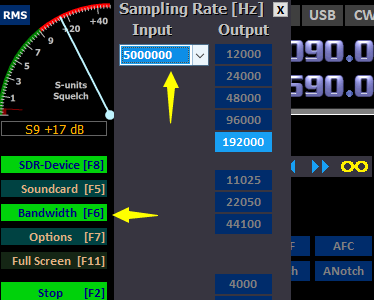
Example of bandwidth and sampling rate settings.
3. Enable Remote Control Mode
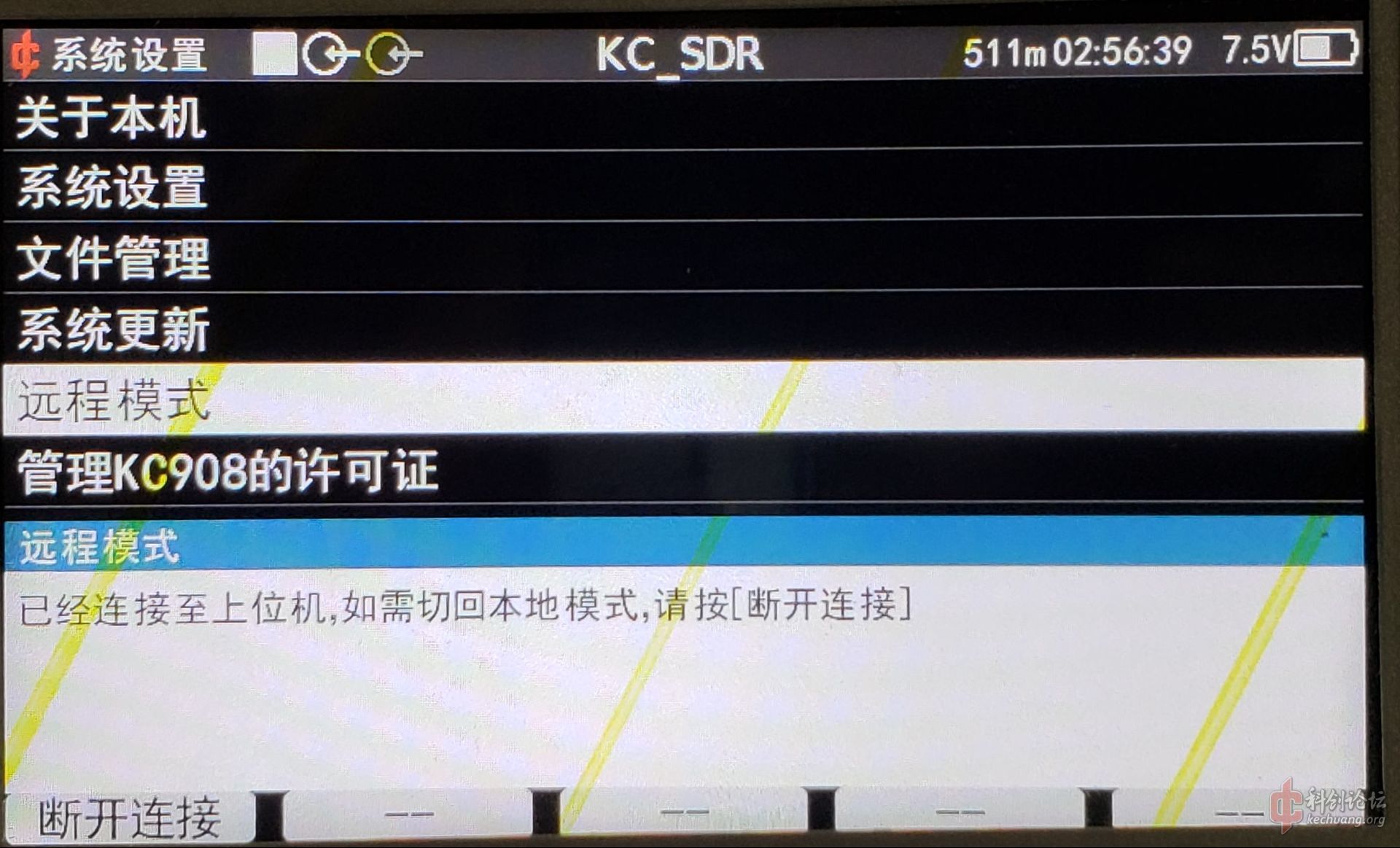
Remote control must be enabled on KC908 before connecting to HDSDR. Power on KC908, press FUNC, then use the knob or “- +” buttons to select Remote Mode. Press ENTER to confirm. Do not press the back key after entering remote mode; exiting will disable remote mode.
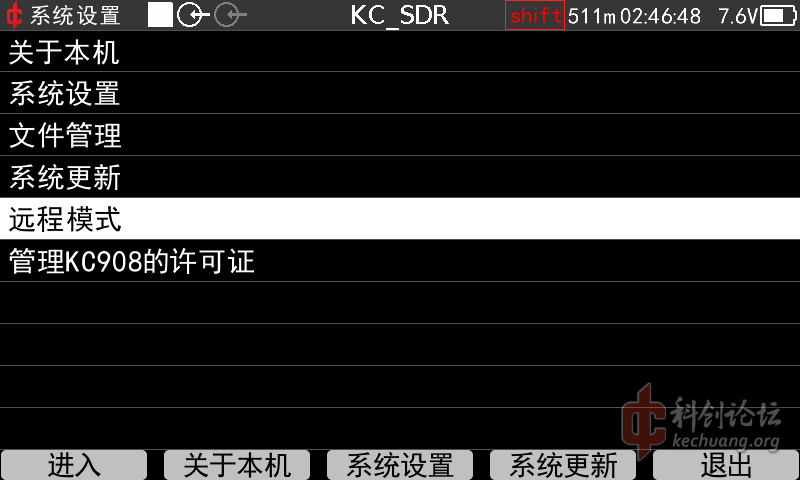
Enable Remote Mode on KC908.
Once enabled, the display shows “Waiting for connection,” indicating that USB3.0 is active.
4. Install USB Driver
4.1 Check if the driver is already installed
KC908 uses the FTDI FT601 USB3.0 bridge chip. Most modern Windows systems will auto-install the signed driver. After entering Remote Mode, connect KC908 to your PC via USB Type-C, then check Device Manager > Universal Serial Bus controllers. If you see FTDI FT601 USB3.0 Bridge Device, the driver is installed.
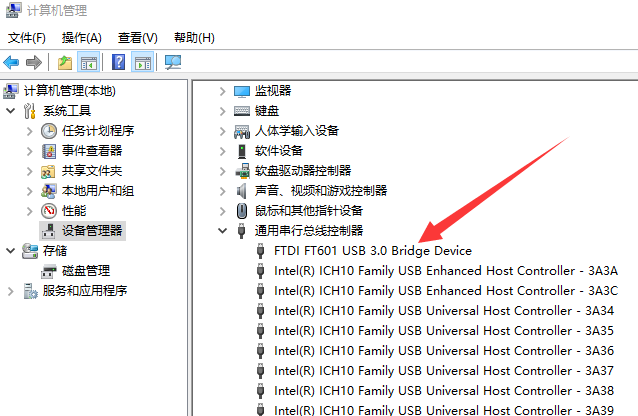
Driver installed: FTDI FT601 USB3.0 Bridge Device.
If you see FTDI SuperSpeed-FIFO Bridge under “Other devices,” the driver is missing.
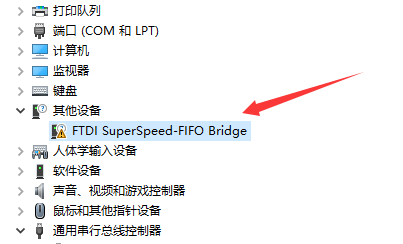
Driver missing: manual installation required.
If no device appears, check cable type and port selection. KC908 has two Type-C ports. The port on the charging panel is for charging only and does not carry data. Use a data-capable USB 2.0/3.0 cable, not a charge-only cable. If hardware failure is suspected, contact your reseller.
4.2 Manual driver installation
Download and unzip the driver package: FTD3XXDriver_WHQLCertified_v1.3.0.2.zip
In Device Manager, right-click the FTDI device under “Other devices” and select Update driver.
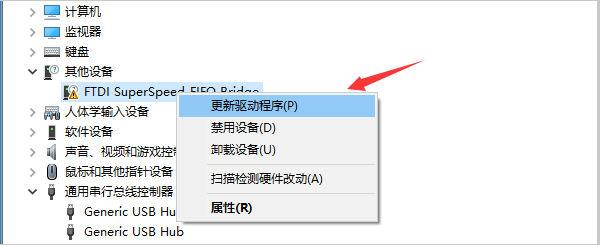
Update driver entry.
Choose Browse my computer for driver software.
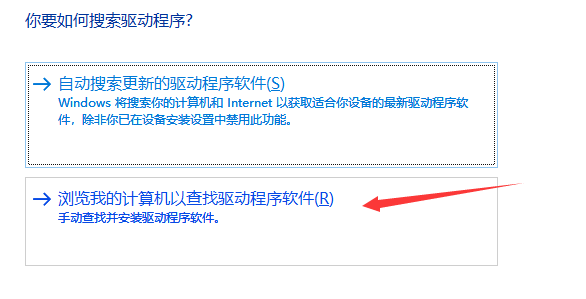
Select the extracted driver folder.
Locate the unzipped driver folder and pick the correct subfolder for your OS. Finish the installation, then refresh Device Manager and confirm the FTDI FT601 device appears.
5. Install HDSDR and the KC908 Interface Library
5.1 Install HDSDR
Download the latest HDSDR from the official site: www.hdsdr.de. You can also use this package: HDSDR_install.zip.
Install using the default path: C:\Program Files (x86)\HDSDR (or choose your own).
5.2 Install the interface library
Download and unzip the KC908 HDSDR interface library (updated 2022-01-03): hdsdr_lib.zip.
After extraction, copy the files inside the lib folder into the HDSDR root directory. Copy the small files inside lib, not the folder itself.
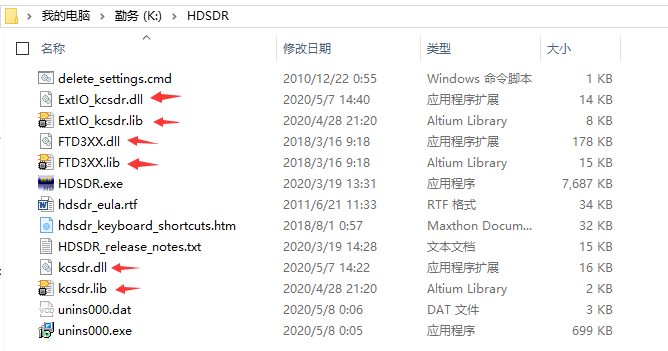
Copy the six files from the lib folder into the HDSDR directory.
6. Configure HDSDR
Before starting HDSDR, ensure KC908 is connected and Remote Mode is enabled. Launch HDSDR.exe. If you start HDSDR before Remote Mode, the KC908 interface will not load, and you must restart HDSDR.
HDSDR main interface after connection.
If audio stutters or the waterfall freezes, the bandwidth is too high. Reduce it to about 2.5 MHz (e.g., 2,500,000). Set Output higher (e.g., 192,000) to keep enough demodulation bandwidth.
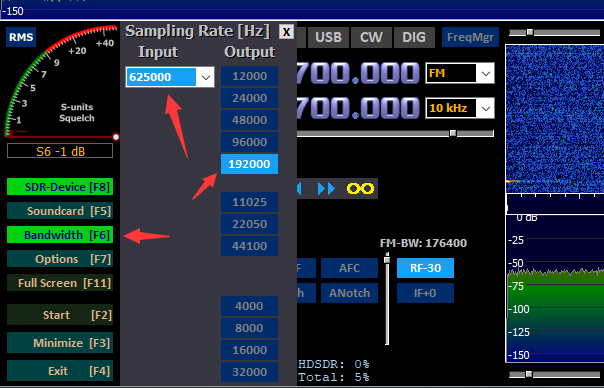
Adjust bandwidth and Output values.
Set frequency and select the demodulation mode. Use the slider to adjust demodulation bandwidth.
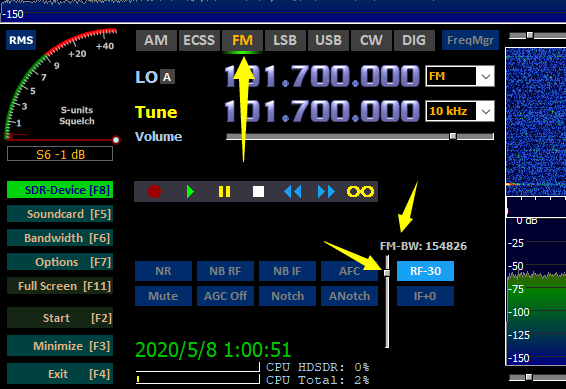
Drag the slider to set demodulation bandwidth.
HDSDR defaults KC908 RF gain to +20 dB and IF gain to 20 dB. Click RF or IF to select the gain control, then adjust with the slider. Typical values are RF +20 dB and IF +20 dB. If the signal is too strong and the spectrum looks distorted, reduce gain immediately. In cities with outdoor antennas, RF gain should usually stay at +20 dB. For >50 MHz reception, IF gain can be up to 30 dB. For shortwave, IF gain should not exceed 20 dB.
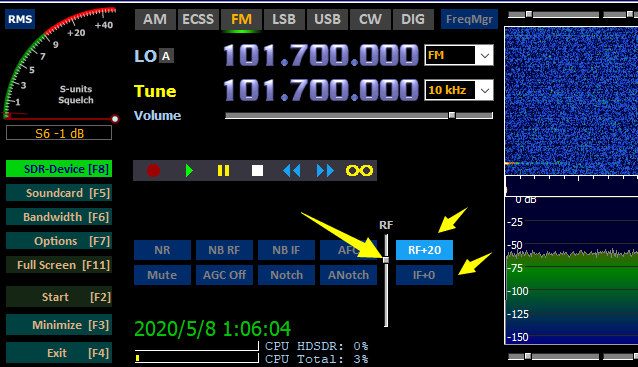
Switch between RF/IF and adjust gain.
After tuning and gain adjustment, you are ready to receive signals. For advanced functions, refer to HDSDR documentation.
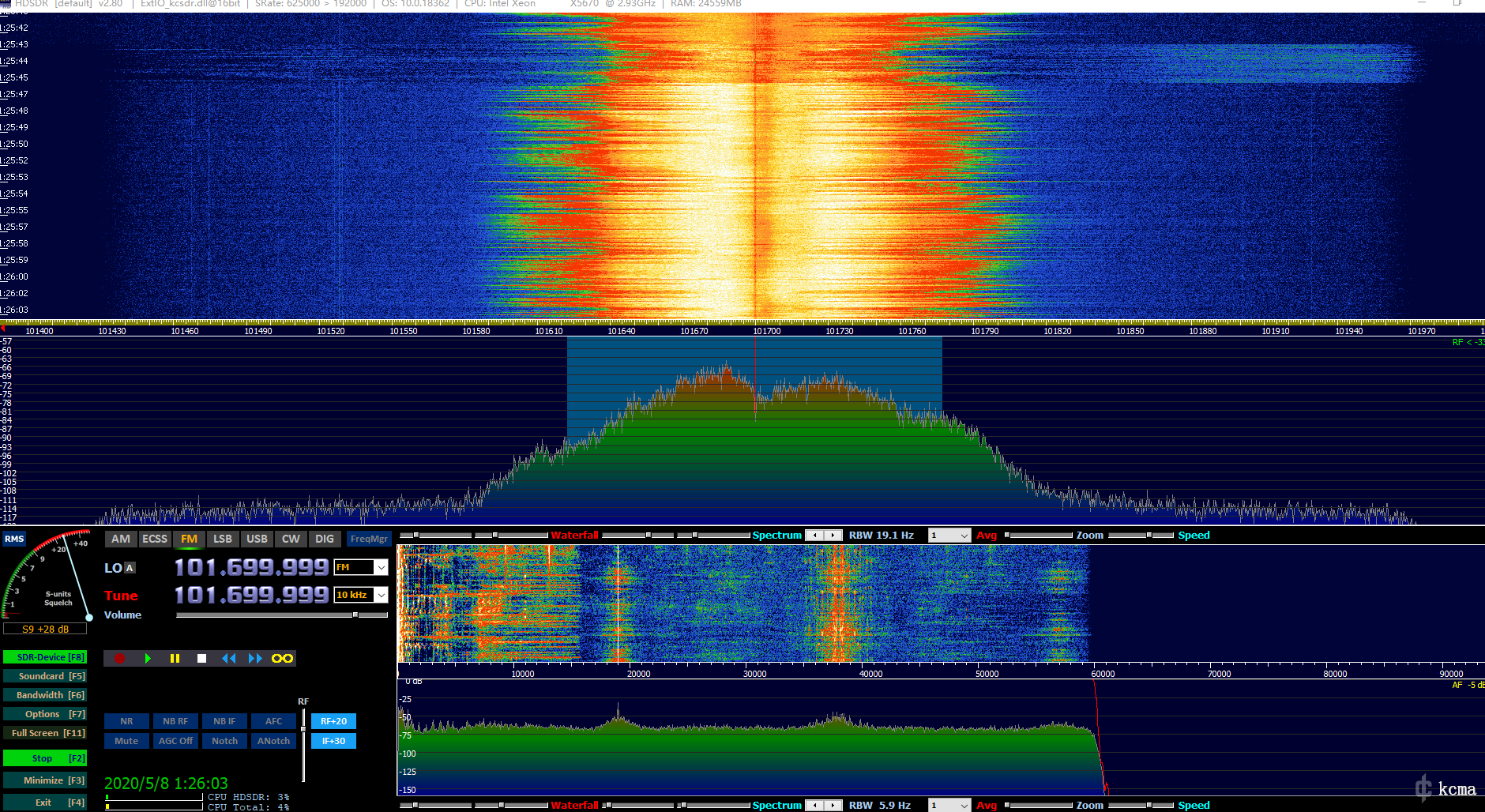
Receiving signals after configuration.
7. Common Errors
If you see an initialization error, verify that the interface library files were copied correctly. If they are correct, unplug and reconnect the USB cable, restart HDSDR, and if needed reboot KC908.
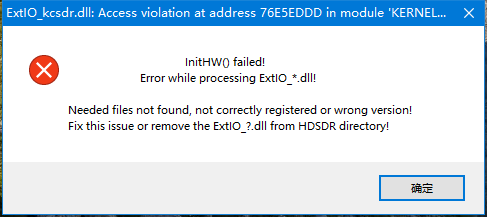
Initialization error example.
Additional common issues will be updated later.